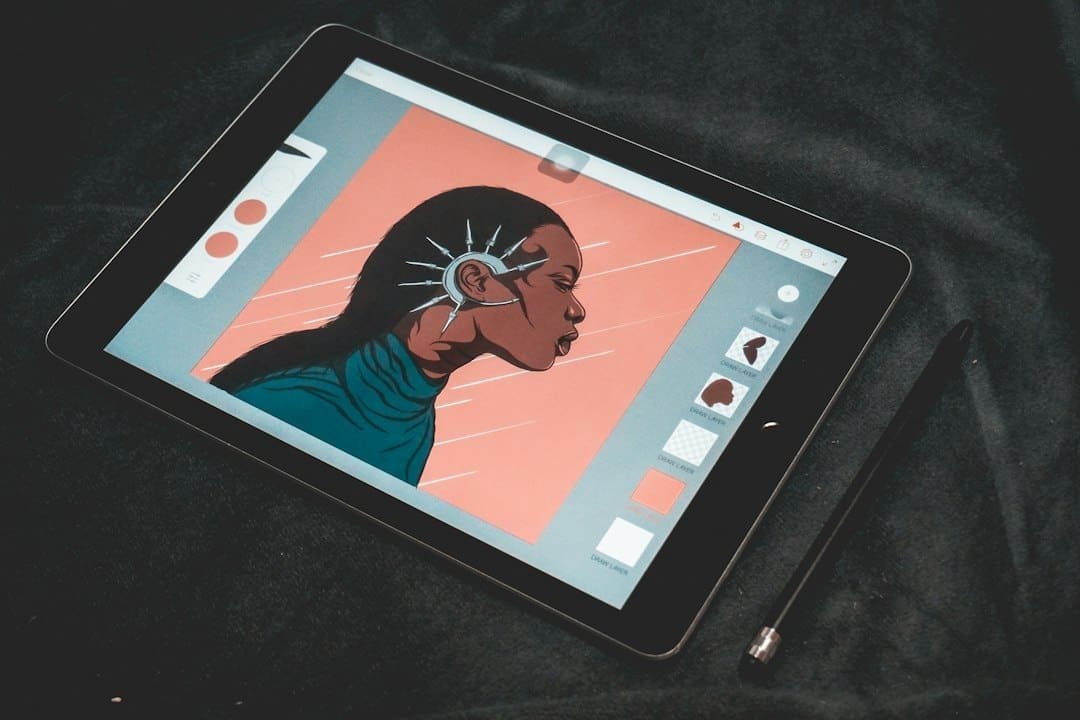
Your Quest for the Perfect Reading and Writing Tablet
You’ve decided it’s time. You want a device that excels at two fundamental tasks: immersing you in digital words and helping you craft your own. But you’re also a savvy consumer, and you know that “best” doesn’t always mean “most expensive.” You’re looking for value, a budget-friendly tablet that delivers a fantastic experience for reading e-books, articles, and documents, and provides a comfortable platform for writing notes, emails, and even creative prose. This guide is for you. We’ll delve into the features that matter most, explore some top contenders, and help you navigate the often-overwhelming world of budget tablets to find your ideal literary companion. Forget the high-end flagships designed for gaming or professional video editing; your focus is on text, and we’re here to help you pinpoint the devices that truly shine in that arena without breaking the bank.
Understanding Your Core Needs
Before you even start looking at specific models, take a moment to honestly assess what’s most important to you. Are you primarily a reader who occasionally jots down notes, or are you a prolific writer who also enjoys diving into a good book? Your answer will subtly shift the emphasis on certain features.
Reading Comfort
For reading, the screen is paramount. You’ll want a display that’s easy on the eyes for extended periods. This means considering factors like screen resolution, panel technology, and even anti-glare coatings. A crisp display prevents eye strain, making your reading sessions more enjoyable and less tiring. Battery life is also crucial; imagine being halfway through a gripping novel only for your tablet to die. Portability is another key aspect. Do you prefer a smaller, lighter device you can comfortably hold with one hand, or a larger screen that offers more page real estate?
Writing Efficiency
If writing is a significant part of your usage, then aspects beyond the screen become critical. The availability and quality of a stylus, the responsiveness of the touchscreen keyboard, and the option to connect an external physical keyboard are all important considerations. Software compatibility for popular word processors and note-taking apps also plays a vital role. You want a device that doesn’t just display text but also empowers you to create it fluidly and efficiently. Input lag, even slight, can disrupt your flow, so you’ll want a tablet with a responsive processor and sufficient RAM to handle your writing applications without frustrating delays.
Balancing Budget and Features
The “budget” aspect is, of course, central to your search. This means understanding where you can compromise without sacrificing the core reading and writing experience. You might not get the absolute best camera or the fastest processor, but you should still expect a smooth and enjoyable performance for your primary tasks. We’re aiming for the sweet spot where affordability meets functionality. This involves looking at the entire ecosystem: not just the tablet’s price tag, but also the cost of accessories like cases, screen protectors, and, crucially, any necessary styluses or keyboards.
If you’re looking for the best budget tablets for reading and writing, you might also find interest in an article about conquering Nephin, which details an adventurous walk to the summit. This article not only provides insights into the beauty of nature but also emphasizes the importance of having the right tools for documenting your experiences. For more information, you can check out the article here: Conquering Nephin: A Walk to the Summit.
Key Features to Prioritize
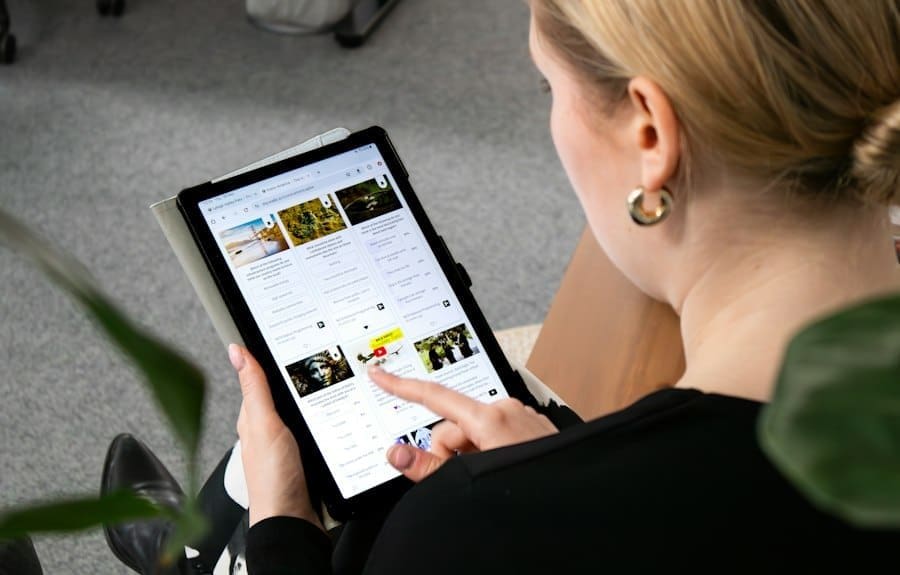
When you’re sifting through the myriad of budget tablets, certain specifications and capabilities will directly impact your reading and writing experience. Knowing what to look for will help you cut through the marketing jargon and focus on what truly matters.
Display Quality and Size
Your eyes will spend hours staring at this screen, so its quality is non-negotiable.
Resolution and Clarity
Look for a tablet with at least a 1920×1200 pixel resolution. Anything lower, especially on screens larger than 8 inches, might result in noticeable pixelation, making text appear blurry or jagged, which can quickly lead to eye fatigue. A higher pixel density (measured in PPI – pixels per inch) ensures sharper text and images, mirroring the crispness of a printed page. While 4K displays are fantastic, they’re typically found in premium tablets and are an unnecessary expense for your primary uses. Full HD (1080p) or slightly above is the sweet spot for budget-friendly clarity.
Panel Technology
IPS LCD screens are common in budget tablets and offer good viewing angles and decent color reproduction. For reading, wide viewing angles mean you can hold the tablet at various orientations without the colors or contrast shifting dramatically. OLED displays offer superior contrast and true blacks, which can be fantastic for reading in low light, but they are rarely found in the budget category. When comparing IPS screens, pay attention to brightness; a brighter screen will be more readable outdoors or in well-lit environments.
Screen Size and Aspect Ratio
Screen size is largely a personal preference. Smaller tablets (7-8 inches) are incredibly portable and comfortable for one-handed reading, mimicking the feel of a physical paperback. Larger tablets (10-11 inches) provide more screen real estate, which can be beneficial for displaying two pages side-by-side or for writing, as it offers more room for the on-screen keyboard or an external one. The aspect ratio also matters. A 16:10 or 4:3 aspect ratio is generally better for reading, as it more closely resembles book pages or documents, reducing the need for constant scrolling compared to wider aspect ratios like 16:9, which are better suited for video consumption.
Performance for Productivity
While you’re not gaming, you still need a tablet that can keep up with your demands.
Processor and RAM
For smooth navigation, quick app loading, and efficient multi-tasking (like having a dictionary app open while reading), you’ll want a tablet with at least an octa-core processor. Look for chipsets from MediaTek Helio G series or Qualcomm Snapdragon 600 or 700 series. Coupled with at least 4GB of RAM, this configuration should provide a responsive experience. If you plan to do more intensive writing, perhaps with multiple apps open simultaneously or working on larger documents, 6GB of RAM would be even better, ensuring fewer slowdowns and stutters.
Storage Capacity
Reading apps and e-books don’t take up much space, but if you download many PDFs, audiobooks, or plan to store personal documents and writing projects, you’ll need adequate storage. Aim for a minimum of 64GB of internal storage. Crucially, look for tablets with expandable storage via a microSD card slot. This allows you to cheaply and easily increase your storage capacity as your digital library grows, making your tablet more future-proof.
Battery Life
Long battery life is critical for uninterrupted reading and writing sessions, especially if you’re on the go. You don’t want to be constantly searching for an outlet. Look for tablets that promise at least 8-10 hours of screen-on time for general use. For dedicated reading, some devices can even push beyond 12 hours. Pay attention to reviews regarding real-world battery performance, as manufacturer claims can sometimes be optimistic. Fast charging capabilities are also a bonus, allowing you to quickly top up your device when time is short.
Software and Ecosystem
The operating system and the apps available are just as important as the hardware.
Android vs. iPadOS (Budget Constraints)
While iPads offer a fantastic writing and reading experience, their budget models still typically exceed what most would consider “budget” for this specific purpose. Therefore, your primary focus will likely be on Android tablets. Android offers unparalleled flexibility and a vast array of apps for reading (Kindle, Google Play Books, Libby, Moon+ Reader, etc.) and writing (Google Docs, Microsoft Word, Evernote, Notion, various markdown editors). The open nature of Android also means you often have more customization options.
App Availability and Optimization
Ensure the tablet you choose has access to the Google Play Store (or another reliable app store, if considering a less common OS). Check reviews to see how well common reading and writing apps perform on the specific model you’re considering. Some budget tablets, especially those from lesser-known brands, might struggle with app compatibility or optimization. A device running a relatively recent version of Android (e.g., Android 12 or newer) will generally offer better app support and security updates.
Top Budget Tablet Recommendations

Now that you know what to look for, let’s explore some of the best budget tablets currently available that strike an excellent balance between price and performance for your reading and writing needs. Please note that prices fluctuate, and specific models may be updated, so always check the latest availability and specifications.
Amazon Fire HD Tablets
Amazon’s Fire HD series is often the first stop for budget-conscious buyers, and for good reason. They offer incredible value, especially when caught on sale.
Fire HD 8 and Fire HD 10
The Fire HD 8 and Fire HD 10 represent the core of Amazon’s reading and writing budget offerings. The Fire HD 8 (and its Plus variant) is incredibly portable, making it ideal for one-handed reading. Its 8-inch screen, while not the sharpest, is perfectly adequate for e-books. The Fire HD 10 offers a larger 10.1-inch 1080p display, which is much better for writing and displaying more text at once. Both devices boast excellent battery life.
The biggest “catch” with Fire tablets is Amazon’s Fire OS, which is a heavily customized version of Android. It prioritizes Amazon’s ecosystem (Kindle, Prime Video, Audible) and doesn’t natively include the Google Play Store. This means you won’t have out-of-the-box access to a vast array of third-party Android apps. However, there are well-documented methods to side-load the Google Play Store, effectively turning your Fire tablet into a more traditional Android device, albeit with some limitations. For writing, Amazon offers its own keyboard cases for the Fire HD 10, making it a decent budget laptop alternative. The general performance for writing with the on-screen keyboard is surprisingly good for the price.
Lenovo Tab Series
Lenovo has established itself as a reliable player in the budget Android tablet market, often delivering solid performance and good displays for the price.
Lenovo Tab M10 Plus (3rd Gen)
The Lenovo Tab M10 Plus (3rd Gen) is a standout recommendation. It features a 10.6-inch 2K (2000×1200) IPS display, which is exceptionally sharp and vibrant for reading and viewing documents. This higher resolution makes a noticeable difference compared to standard 1080p screens. Powered by a MediaTek G80 or G90T series processor and typically 4GB or 6GB of RAM, it offers smooth performance for most reading and writing applications.
What truly elevates the Tab M10 Plus for writing is its optional Precision Pen 2 stylus and keyboard folio. While these accessories add to the cost, they transform the tablet into a highly capable note-taking and writing machine. The stylus offers good pressure sensitivity, and the physical keyboard is surprisingly comfortable for extended typing sessions. It runs a relatively clean version of Android, providing full access to the Google Play Store and all your favorite productivity apps. Battery life is also very respectable, often exceeding 10 hours of mixed use.
Samsung Galaxy Tab A Series
Samsung’s Galaxy Tab A series consistently delivers a polished Android experience at competitive prices, benefiting from Samsung’s extensive software and hardware expertise.
Samsung Galaxy Tab A8
The Samsung Galaxy Tab A8 is a popular choice for its balanced feature set. It features a 10.5-inch 1920×1200 TFT LCD display. While not as vibrant as an AMOLED or a high-res IPS screen, it’s perfectly fine for reading and offers good clarity for the price. Under the hood, it typically runs on a Unisoc T618 processor with 3GB or 4GB of RAM. While not a powerhouse, it handles reading apps, web browsing, and basic word processing with ease.
Samsung’s One UI software is generally well-regarded for its user-friendliness and features like multi-window support, which can be useful for researching while writing. The Tab A8 doesn’t officially support Samsung’s S Pen, which is a drawback if stylus input is crucial for you. However, you can use universal capacitive styluses for basic navigation. For writing, you’ll rely on the on-screen keyboard or connect a Bluetooth keyboard. The overall build quality feels solid, and battery life is very good. It’s a dependable workhorse for everyday reading and writing without any major frills.
Xiaomi Redmi Pad
Xiaomi has made significant inroads into the tablet market, offering compelling specifications at aggressive price points.
Xiaomi Redmi Pad
The Xiaomi Redmi Pad is another strong contender, particularly if you value a high refresh rate display. It often features a 10.61-inch 2K (2000×1200) IPS LCD with a 90Hz refresh rate. This higher refresh rate makes scrolling and animations incredibly smooth, which can enhance the reading experience by reducing perceived blur and making navigation feel more fluid. Powered by a MediaTek Helio G99 processor and typically 4GB or 6GB of RAM, it offers excellent performance for its price range, easily handling all reading and writing tasks.
The Redmi Pad runs MIUI for Pad, which is Xiaomi’s customized Android interface. While it comes with a few pre-installed Xiaomi apps, it still provides full access to the Google Play Store. Battery life is a significant highlight, often boasting an 8,000 mAh battery that can last for days of intermittent reading. While there isn’t an official stylus or keyboard accessory from Xiaomi specifically designed for the Redmi Pad in the same vein as Samsung’s S Pen or Lenovo’s Precision Pen, any standard Bluetooth keyboard and universal capacitive stylus will work. The overall package makes it an excellent value proposition for both reading and productivity.
Essential Accessories for Enhanced Experience
A tablet alone is a great start, but certain accessories can significantly elevate your reading and writing experience, transforming your budget device into a truly versatile tool.
Cases and Screen Protectors
These are non-negotiable investments. A good case will protect your tablet from drops, bumps, and scratches, prolonging its lifespan and maintaining its resale value. Look for cases that offer both front and back protection, and ideally, those that can fold into a stand for hands-free reading or comfortable typing angles. A screen protector, whether tempered glass or a film, will guard against scratches and smudges, keeping your display pristine and readable. Some screen protectors even offer an anti-glare finish, which is excellent for outdoor reading.
Styluses for Note-Taking and Annotation
If you plan on taking handwritten notes, annotating PDFs, or sketching ideas, a stylus is indispensable.
Passive vs. Active Styluses
Passive (capacitive) styluses are basic, inexpensive tools that mimic your finger. They’re good for general navigation and simple sketching but lack precision and pressure sensitivity. Active styluses, on the other hand, communicate directly with the tablet’s screen, offering fine point accuracy, palm rejection (so you can rest your hand on the screen while writing), and often pressure sensitivity for varied line thickness. While premium active styluses like the Apple Pencil or Samsung S Pen are often exclusive to specific high-end tablets, some budget Android tablets (like the Lenovo Tab M10 Plus) support active styluses, and you can also find universal active styluses that work reasonably well with many Android devices, though with varying degrees of success regarding palm rejection and pressure sensitivity.
External Keyboards for Serious Writing
For anything beyond quick notes or emails, a physical keyboard will dramatically improve your writing speed and comfort.
Bluetooth Keyboards
The most common and versatile option is a standalone Bluetooth keyboard. These can range from compact, portable models to full-sized keyboards with trackpads, effectively turning your tablet into a mini-laptop. Look for keyboards with comfortable key travel and spacing. Many come with integrated stands or can be paired with a folio case that includes a keyboard. The advantage here is that a good Bluetooth keyboard can be used with multiple devices, not just your tablet.
Keyboard Folios
Some tablets, like the Amazon Fire HD 10 and Lenovo Tab M10 Plus, have custom-designed keyboard folios that seamlessly integrate with the tablet, often connecting via Pogo pins (for a more stable, battery-free connection) or through Bluetooth. These provide a unified, laptop-like experience, though they are usually specific to a particular tablet model and might be slightly more expensive than generic Bluetooth keyboards.
If you’re looking for affordable options to enhance your reading and writing experience, you might find the article on Best Budget Tablets for Reading and Writing particularly helpful. It provides a comprehensive overview of various tablets that offer great value without compromising on essential features. Whether you’re a student, a professional, or simply someone who enjoys reading e-books and jotting down notes, this guide can help you make an informed decision.
Optimizing Your Tablet for Reading and Writing
Once you have your budget tablet in hand, a few tweaks and software choices can further enhance your dedicated reading and writing experience.
Choosing the Right Reading Apps
The default reading app might be fine, but there are often better alternatives.
E-reader Apps with Customization
Beyond Kindle and Google Play Books (which are excellent for their respective ecosystems), consider apps like Moon+ Reader or Libby. Moon+ Reader offers unparalleled customization options for fonts, line spacing, margins, background colors, and even gestures, allowing you to create the perfect reading environment. Libby connects to your local library, allowing you to borrow e-books and audiobooks for free. Many of these apps also offer “night mode” or “dark mode” features that invert colors, making reading in low light much more comfortable on your eyes.
PDF Readers and Annotators
For academic papers, manuals, or work documents, a robust PDF reader is essential. Adobe Acrobat Reader and Xodo PDF Reader are popular choices that offer annotation tools, highlighting, and search functionality. If your tablet supports an active stylus, these apps truly come alive for marking up documents.
Maximizing Writing Productivity
Beyond the hardware, the software and workflow you establish can make a significant difference in your writing output.
Word Processors and Note-Taking Apps
Google Docs and Microsoft Word are staples for document creation and collaboration, both offering excellent mobile apps. For note-taking, Evernote and Notion are powerful tools that go beyond simple text, allowing for rich media, organization, and cross-device syncing. If you prefer a minimalist approach, consider markdown editors like Joplin or Markor, which focus on plain text and elegant formatting. Experiment with different apps to find the interface and feature set that best suits your writing style.
Dictation and Voice-to-Text
Don’t underestimate the power of voice-to-text. Most modern tablets have excellent built-in dictation capabilities through their virtual keyboards. If you’re struggling with writer’s block or just prefer to speak your thoughts, this can be a powerful tool for getting your ideas down quickly before refining them later with the keyboard.
Split-Screen and Multi-Window Features
Utilize your tablet’s multi-window capabilities (common in Android). This allows you to have a reading app open on one side of the screen and a note-taking app or word processor on the other. You can reference information from a book or article while simultaneously writing, greatly improving your research and writing workflow without constantly switching between apps. This is where a larger screen (10 inches or more) really shines.
By focusing on these key features, accessories, and software optimizations, you can confidently choose a budget tablet that not only meets but exceeds your expectations for reading and writing, proving that you don’t need to spend a fortune to get a truly productive and enjoyable device.
P.S. Enjoyed this? Become an insider and I'll send you one of my favourite posts every couple of weeks.