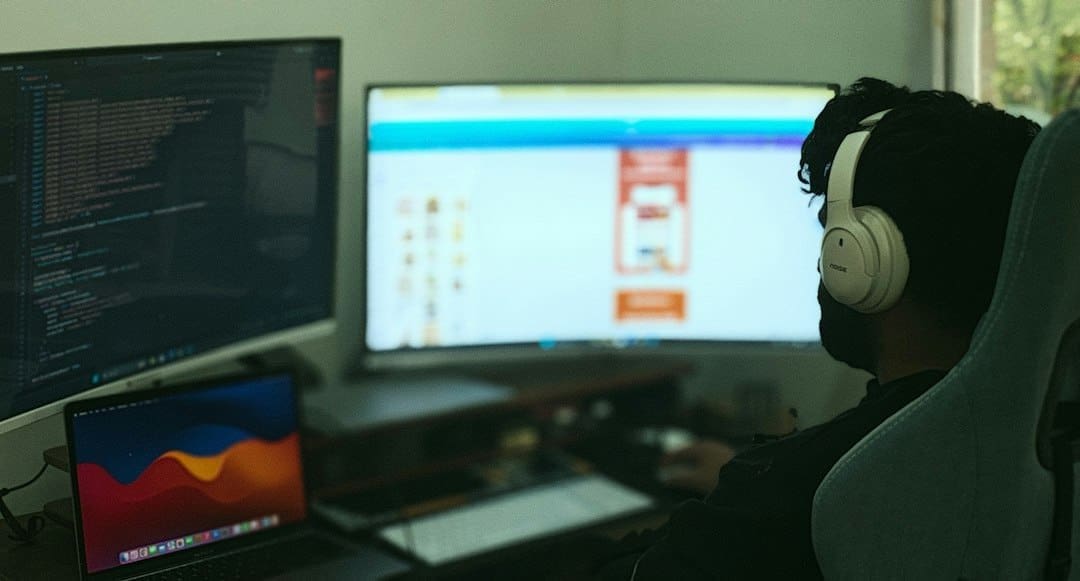
A dual monitor setup gives you room to write, research and take calls without juggling windows. Here's what you need and how to set it up at home.
Working on one screen means a lot of shuffling. Draft in one window, notes in another, email behind both, and a video call that keeps vanishing under everything else. A second monitor ends most of that. You put the thing you're working on in front of you and everything you're referring to beside it.
It's one of the cheapest upgrades you can make to a home office, and it's easier to set up than most people expect. Here's what you need, how to connect it and how to arrange it so it's comfortable to use all day.
Why a Dual Monitor Setup Helps
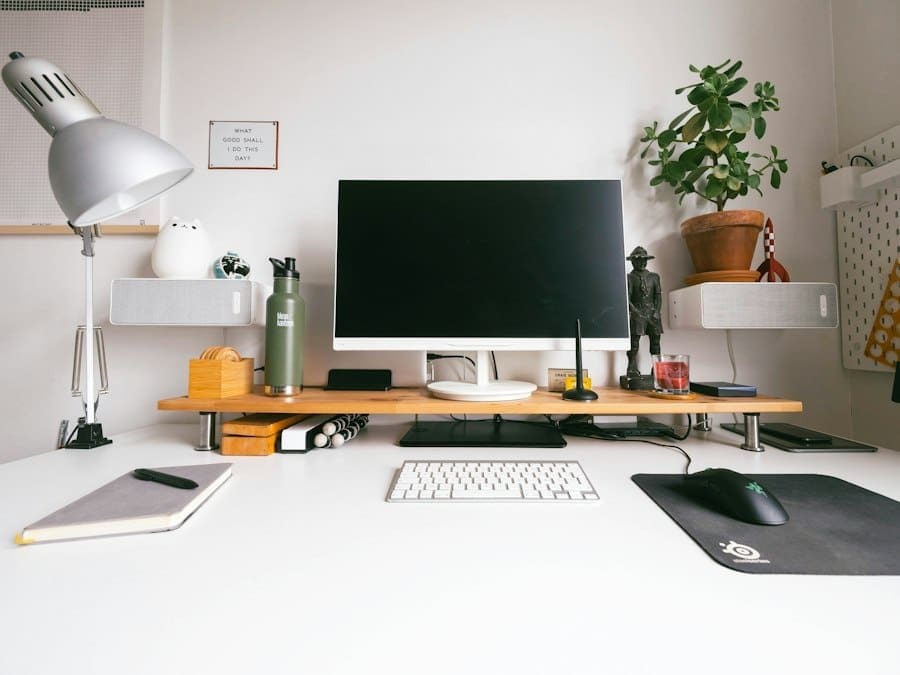
The main win is less switching. Every time you minimise one window to find another, you lose your place a little. With two screens, you can keep your document open on one and your research, spreadsheet or meeting on the other.
For writers it's especially handy. Manuscript on the main screen, story notes or a style sheet on the second. For remote workers, it means you can keep a call on one screen and the shared document on the other, without squinting at a tiny window in the corner.
What You Need for a Dual Monitor Setup
A second monitor
If you can, match your second monitor to your first: same size and same resolution. Windows and text then look the same when you drag them across, and the two screens line up neatly. If you're buying both new, two 24-inch Full HD (1080p) screens make a sensible budget pair, while 27-inch screens are usually nicer at 1440p.
Mixing sizes is fine too. Both Windows and macOS let you set the scaling on each screen separately, so a smaller or older monitor can still make a useful second screen for email, chat or notes. A monitor with an IPS panel is a good default for office work, as colours and viewing angles hold up well when you look at it from the side.
The right ports
Check what your computer has before you buy anything. The common video ports are:
- HDMI: on almost every monitor and most computers.
- DisplayPort: common on desktop graphics cards and better monitors.
- USB-C or Thunderbolt: on many laptops. It only carries video if the port supports DisplayPort Alt Mode or Thunderbolt, usually shown by a small display or lightning icon beside it.
Older kit may have DVI or VGA. They still work with the right adapter, but they're worth replacing if you're buying new.
+ Join Our Writing Community for FREE
Chain Story Online
Fun, free, flash fiction writing with writers just like you. You have ~100 words to begin a story or continue a story and make it yours.
Story Bible Studio
Digital space for writers to plot, plan, and build better stories. Designed by writers for writers. Your final draft awaits.
A dock or adapter for laptops
Many laptops only have one video port. A USB-C or Thunderbolt dock can add extra HDMI or DisplayPort outputs, plus USB ports, Ethernet and charging through a single cable. Check that the dock says it supports two external displays, and check your laptop does too. Some laptops, including some base-model MacBooks, only support one external display natively, so look up your model's specs first.
A stand or arms
The stands that come with monitors are often too low. A dual monitor arm clamps to the back of your desk, frees up desk space and lets you set the height and angle of each screen. A few books or a simple riser works too.
How to Set Up Dual Monitors
- Connect the cables with everything switched off, then power on the monitors and the computer.
- On Windows, go to Settings, then System, then Display. Choose "Extend these displays", then drag the screen boxes so they match where your monitors sit on the desk. Pressing Windows key + P is a quick way to switch between extend and duplicate.
- On a Mac, open System Settings, then Displays, then Arrange. Drag the screens into position and make sure mirroring is off.
- Pick your main display. That's the one that holds the taskbar or menu bar and opens new windows.
- Set the resolution and scaling for each screen so text looks about the same size on both.
A handy shortcut on Windows: Windows key + Shift + left or right arrow moves the active window to the other screen.
Arrange Your Screens for Comfort
How you place the screens matters as much as the screens themselves:
- If you mostly use one screen, put it straight in front of you and the second off to the side, angled in.
- If you use both equally, put the join between them in the centre, in line with your nose, so you turn your head equally each way.
- Set the height so the top of each screen is at or just below eye level, about an arm's length away.
- Match the brightness on both screens, and keep a window to the side rather than behind you to cut glare.
Long days looking at two bright screens can still tire your eyes, so take regular breaks. These simple habits for screen eye strain help.
Final Thoughts on Your Dual Monitor Setup
A dual monitor setup is a small change that makes a home office feel much bigger. Check your ports, match the screens if you can, get the height right and put the screen you use most straight in front of you. After a week you'll wonder how you managed with one.
Once your desk is sorted, put the extra space to work. Plan your story in Story Bible Studio, try a round of collaborative fiction on Chain Story Online, and find more home office tips here on Enda Storrie.
Next step: Setting up the rest of your workspace? See the best desk setup for working from home.
Related reading: Home Office Lighting: How to Look Good on Video Calls · How to Avoid Back Pain When Working From Home
Enda Storrie is a writer and the creator of Story Bible, the planning journal and app for writers, and Chain Story Online, a free collaborative storytelling platform.
P.S. Enjoyed this? Become an insider and I'll send you one of my favourite posts every couple of weeks.