Add a book preview to your author website in an afternoon: what to share, how long it should be, and four easy ways to show it, step by step in WordPress.

Think about the last time you bought a book in a shop. You picked it up, read the back, then opened it at page one and read a few lines. If the voice caught you, the book went home with you. If it didn't, it went back on the shelf.
A book preview does the same job on your author website. Without one, a visitor has your cover, your blurb and a buy button, and that's a big leap of faith for someone who has never read a word you've written. With one, they can try your writing for free, and the ones who like it will go looking for the rest.
Why a Book Preview Helps Sell Your Book
Readers don't buy plots, they buy voices. A blurb tells people what happens, but only your sentences can show them how it feels to read you. A good sample does three things at once.
- It builds trust. Letting people read before they pay says you're confident in the work.
- It finds the right readers. People who love the sample are far more likely to finish the book and review it kindly. People who don't would probably not have enjoyed the book anyway.
- It keeps visitors on your site. Someone reading your first chapter is someone you can invite onto your mailing list at the end.
Retailers already know this, which is why Amazon has Look Inside and Kindle samples. Your own site can do it better, because you choose the excerpt and you decide what happens when the reader reaches the last line.
What to Put in Your Book Preview
For most novels, the simplest answer is the best one: use the opening. Your first chapter was written to hook a stranger, so let it do its job. Readers also like to start at the beginning, the way they would in a shop.
Break that rule only if your opening is slow and a later scene shows your voice far better. Even then, pick a scene that makes sense without much set-up, and add a single line of context above it.
For non-fiction, share the introduction plus one useful chapter. The reader should finish the sample having learned something real, so they trust the rest of the book will deliver too.
How long should a book preview be?
Aim for one or two chapters, or roughly 5–10% of the book. That's long enough for someone to settle into your voice, and short enough to leave them wanting more. Try to end on a moment of tension or an open question rather than a neat resolution.
If your ebook is enrolled in KDP Select, check the current terms before you post anything. Amazon asks for the digital edition to be exclusive, but it has allowed authors to share up to 10% of the book elsewhere as a sample. Keep within that and you're on safe ground.
Polish it first
Your preview is the most-read part of your book, so give it a final proofread. Look out for spoilers too. A reveal that's fine in chapter one of the finished book can still give too much away if the sample is all a reader ever sees.
+ Join Our Writing Community for FREE
Chain Story Online
Fun, free, flash fiction writing with writers just like you. You have ~100 words to begin a story or continue a story and make it yours.
Story Bible Studio
Digital space for writers to plot, plan, and build better stories. Designed by writers for writers. Your final draft awaits.
Four Ways to Add a Book Preview to Your Website
There's no single right way. Pick the one that suits your site and how comfortable you are with the tech side.
1. Put the text straight on the page
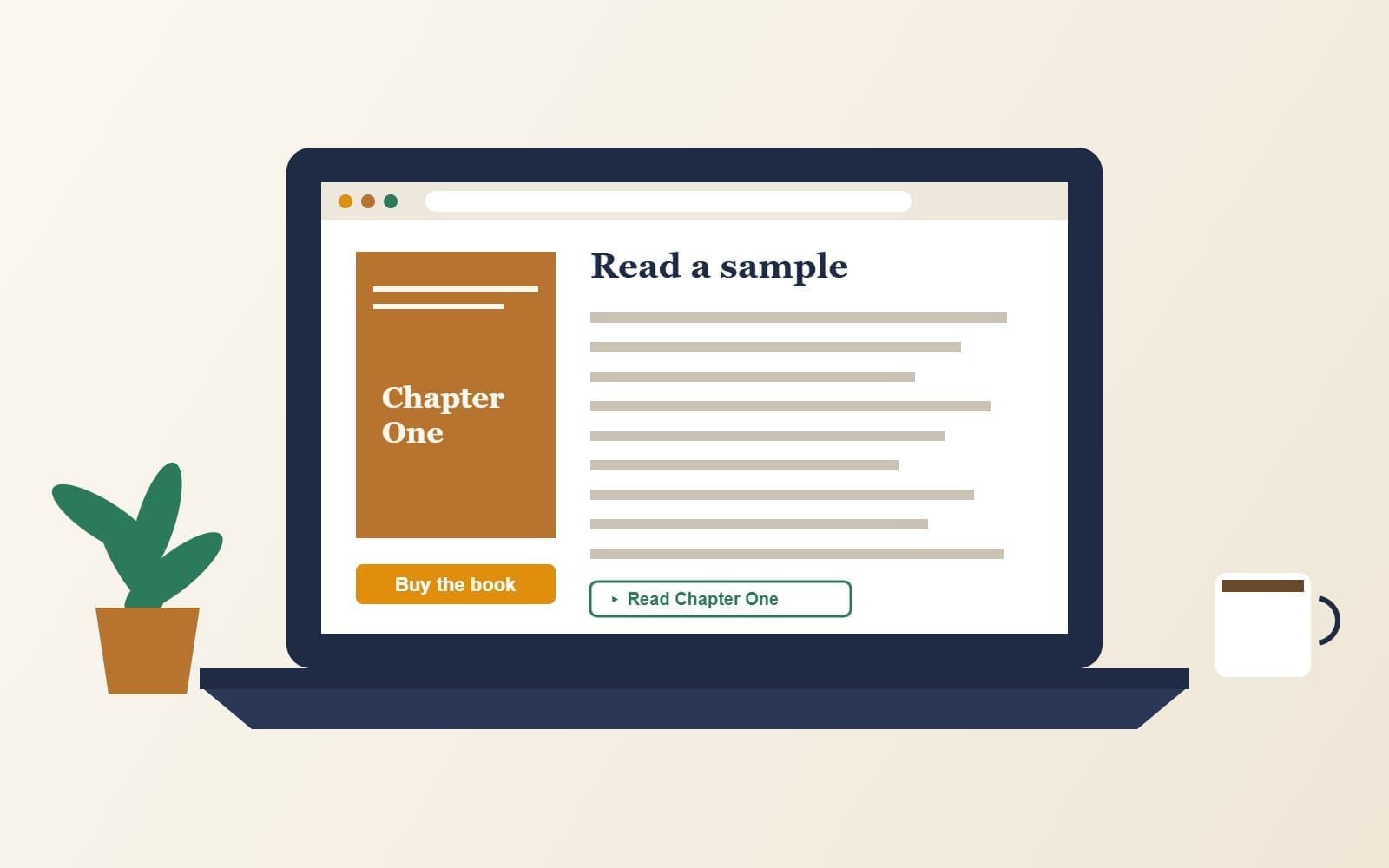
This is my favourite. Copy the chapter into a "Read a sample" section on your book's page. It loads quickly, it reads well on phones, and the words are on your site, where readers (and search engines) can find them.
Paste it as plain text first, then put back the italics and scene breaks by hand. Pasting straight from Word can bring messy formatting with it.
2. Use an expandable section
A whole chapter can make a book page very long. Tuck it inside an expandable section instead, with a heading such as "Read the first chapter". Visitors who want it click to open it, and everyone else still sees your cover, blurb and buy buttons near the top.
3. Offer a PDF or ebook sample
A PDF lets you keep your book's own fonts and layout, which is useful for illustrated or non-fiction books. Keep the file small, add your cover to the first page, and finish with a clear "Get the full book" link. Services such as BookFunnel can also deliver ebook samples to Kindles and other e-readers, but that's a paid extra you don't need at the start.
A downloadable sample also works well as a reason to join your mailing list, as long as you're upfront that the reader is signing up.
4. Link to a retailer preview
If your book is already on sale, you can link to Amazon's Look Inside or to Google Books, which offers previews for some titles. It's the least work, but it sends readers away from your site, so I'd use it as a backup to your own sample rather than as the only option.
Adding a Book Preview in WordPress, Step by Step
If your author site runs on WordPress, you can do all of this with the built-in block editor. No extra plugins are needed.
- Open your book page. In the dashboard, go to Pages, find your book's page and click Edit.
- Add a heading. Below your blurb and buy buttons, add a Heading block such as "Read the first chapter".
- Add a Details block. This is WordPress's built-in expandable section. Type a short summary line, for example "Click to read Chapter One".
- Paste your chapter inside it. Paste the text into the Details block, then check the paragraphs, italics and scene breaks.
- Or add a PDF instead. Upload the PDF with a File block. Most themes can show it in a viewer right on the page, plus a download button.
- Add a call to action at the end. Finish with a buy link and a sign-up box (see below).
- Preview on your phone. Most readers will see it on a small screen, so check the text is easy to read there.
One thing to avoid: the old "More" block. It only shortens a post on your blog's list pages. It doesn't hide text on the page itself, so it won't keep a long chapter tidy.
Squarespace, Wix and most other website builders have their own text and accordion blocks, so the same steps work there too, even if the menu names are a little different.
Make Your Book Preview Work Harder
The end of your sample is the most valuable spot on your website. The reader has just spent ten minutes with your words and wants to know what happens next. Don't leave them with nowhere to go.
- Add a buy link to every place your book is sold, right where the sample ends.
- Add a newsletter sign-up for readers who aren't ready to buy yet. My guide to adding a newsletter signup to WordPress walks you through it.
- Link the sample from everywhere: your home page, your book landing page, your email signature and your social media profiles.
- Watch your numbers. Your analytics will show how many people open the sample and how many click through to buy. If plenty open it but few click, try a different ending point.
Final Thoughts on Adding a Book Preview
You don't need anything fancy. One good chapter, a tidy expandable section and a clear next step will turn your book page from a shop window into a place where readers can actually try your writing.
Set aside an afternoon, choose your excerpt, and get it online. Then let your words do the selling.
While you're writing the next book, keep your characters, places and plot notes organised in Story Bible Studio, try a round of collaborative fiction on Chain Story Online, and find more web guides for writers here on Enda Storrie.
Next step: Still setting up your author site? Find it a home with my Hostinger review, then give it a clean look with my Astra theme review.
Related reading: Book Landing Page: What to Include to Sell More Copies · How to Build an Author Website in a Weekend
Enda Storrie is a writer and the creator of Story Bible, the planning journal and app for writers, and Chain Story Online, a free collaborative storytelling platform.
P.S. Enjoyed this? Become an insider and I'll send you one of my favourite posts every couple of weeks.